Touch typing for children and grown-ups
Learn to touch type with real words, from the first lesson.
Accuracy comes first. Each short lesson uses only the keys you have met, on a calm screen that shows your words and the finger to use. No ads.
Lessons need a computer with a physical keyboard. Open this page on a laptop or desktop to start.
Kiwi Type
In 30 seconds
- What it is
- A touch-typing course in your web browser. 280 short stages in 28 chapters, with real words from the first lesson, then open speed practice.
- Who it is for
- Children who can read short words, and grown-ups who still type with two fingers.
- Ads and purchases
- No ads, and nothing to buy inside the app.
- What you need
- A computer with a physical keyboard, set to QWERTY, Dvorak, Colemak or Workman.
- What a child needs
- At home, just a name. No email, no password, no app store. At school, pupils sign in with their school email.
How it works
Pick a name.
You don't need an email or a password. You get a 12-character resume code to come back on another computer. Then choose your keyboard layout. Most people use QWERTY.
Type a short lesson.
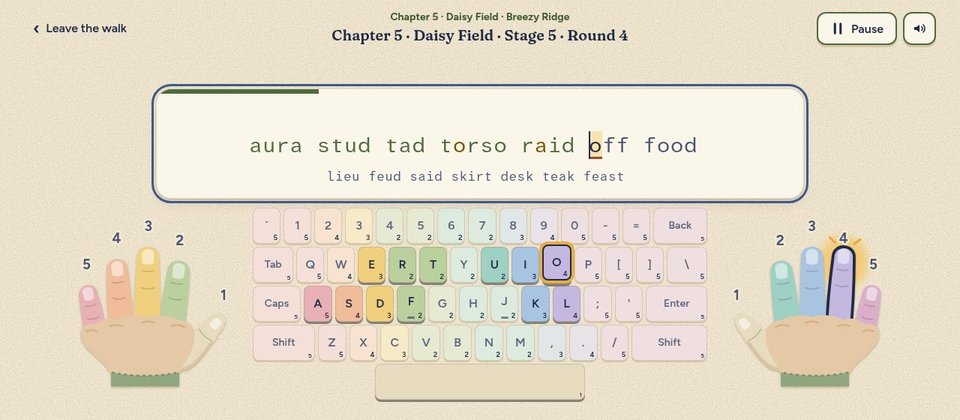
About 20 real words, from the very first lesson, using only the keys you have met. New words arrive gradually. The keyboard on screen shows which finger to use, in its own colour.
Move along the path.
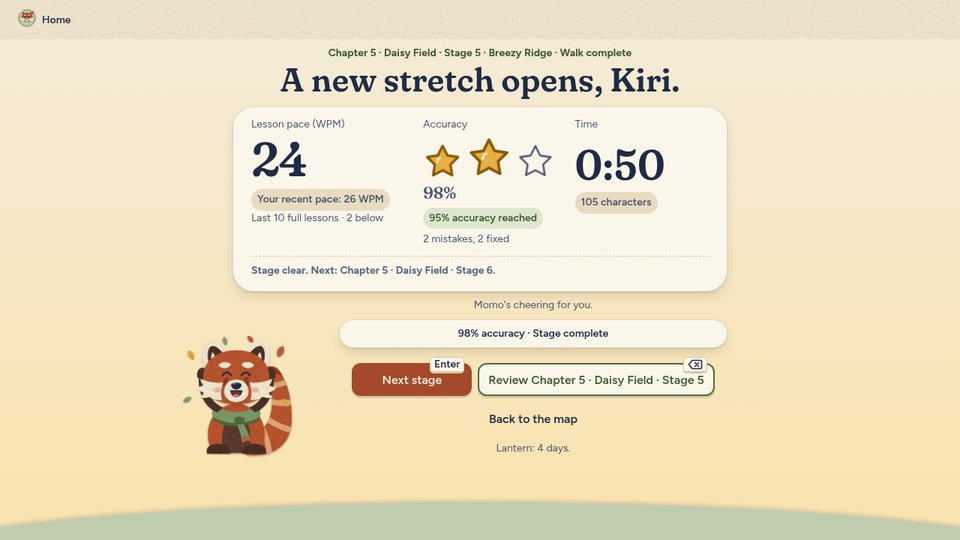
In Chapters 1 to 10 every stage asks for 95% accuracy, and there is no speed target. One finished lesson that reaches the goal shown on screen clears the stage. There is no countdown clock. If a stage is still hard after three tries, a "Continue anyway" button lets you carry on.
A calm lesson screen
- Only your words, the next line and the keyboard. No mascot card while you type, and big hands that show the finger to use.
- A wrong key is marked and the lesson goes on. Backspace goes back to fix it.
- A letter you fixed turns yellow. The results say how many mistakes you made and how many you fixed, for example "2 mistakes, 2 fixed". A fixed letter still counts as a mistake.
- A mute button on the lesson screen turns every sound off with one click.
Already a typist? One short placement check can start you at Chapter 3, 6 or 10. It never moves you back.
For parents: five calm minutes a day, and a plain report
Your child walks a path of 280 short stages, one finger at a time. There are no ads and no chat. Stars and medals come from careful typing, not from hours on screen.
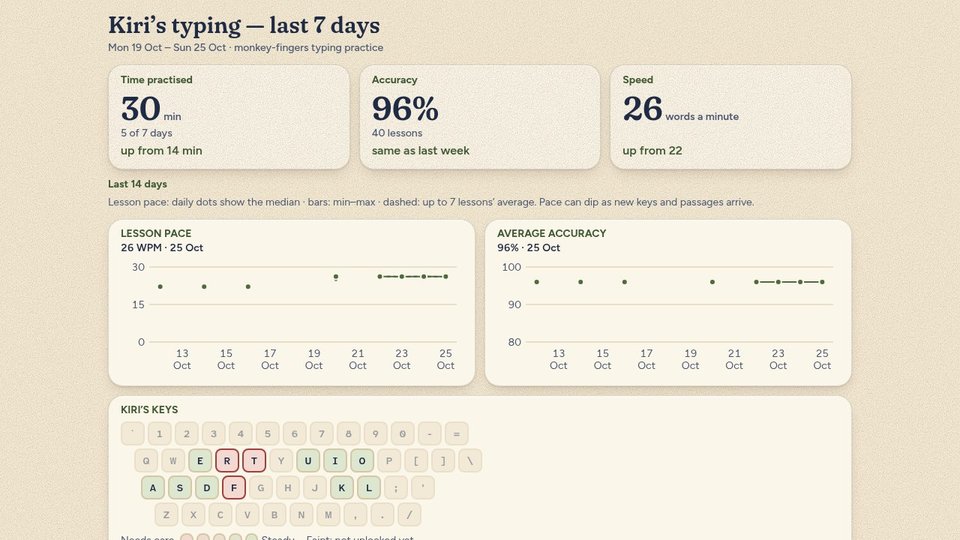
See the last 7 days, without an account
- Your child opens Settings, finds Family report and chooses Parent links. If their school uses Kiwi Type, the school invites you to its own family page instead.
- The report shows minutes practised and on how many days, accuracy, speed, keys learned, place on the path, any homework from a teacher, and one next step.
- It never shows friends, medals, stars or anything typed key by key.
- The link works for 30 days, and you can turn it off at any time. It has a Print button.
For grown-ups who still type with two fingers
Start from zero, or let the placement check move you along. The lessons are short, the words are real, and the speed goals stay modest.
- Four layouts: QWERTY, Dvorak, Colemak and Workman. Each keeps its own place on the path.
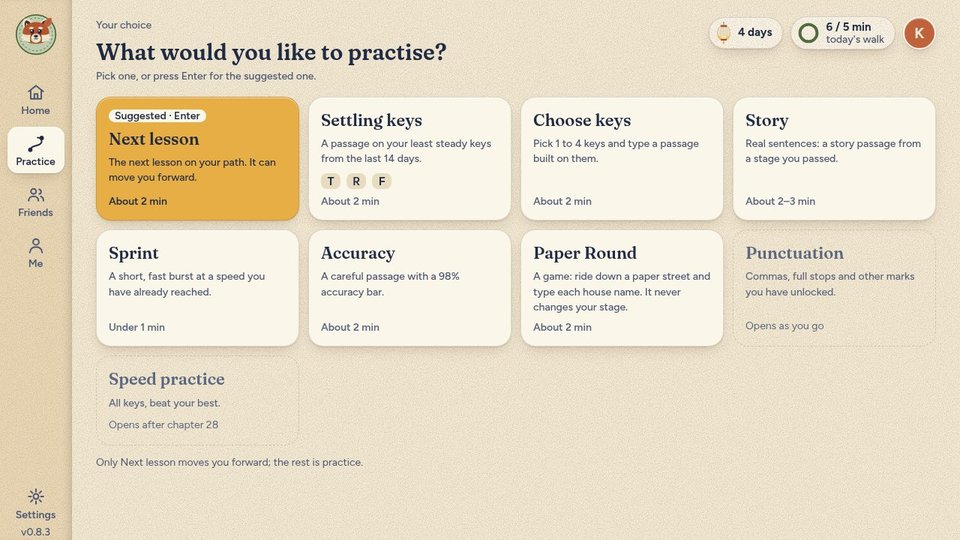
- Practice your way: pick Next lesson, Settling keys (your least steady keys from the last 14 days), Choose keys (1 to 4 keys), Story, Sprint, Accuracy and more. Paper Round, a short typing game, sits here too and never changes your stage.
- A colour map of your keys: when you choose keys to practise, each one is coloured by how steady it is, and the unsteady ones are outlined.
- Accuracy first: Chapters 1 to 10 need 95% accuracy and no speed. From Chapter 11 there is a speed goal, 18 words a minute at first, rising to 25. From Chapter 11, Accuracy stages ask for 98%.
- A short menu: Home, Practice, Friends, Me (your medals and your Studio) and Settings.
- Sounds you choose: Wood, Typewriter or Soft pops, or no sound at all.
- Combo sparkles: 3 or more words in a row with no wrong key make a little sparkle and a soft sound. A lesson with no wrong key ends with a Full combo tag. You can turn off Combo effects in Settings.
A path through Paper Grove
Calm paper colours. Walk a forest path from Home Glade to Star Summit with Momo the red panda, Pip the otter, Clover the rabbit and their friends, like Fern the kiwi (Chapter 10) and Wattle the kangaroo (Chapter 23).
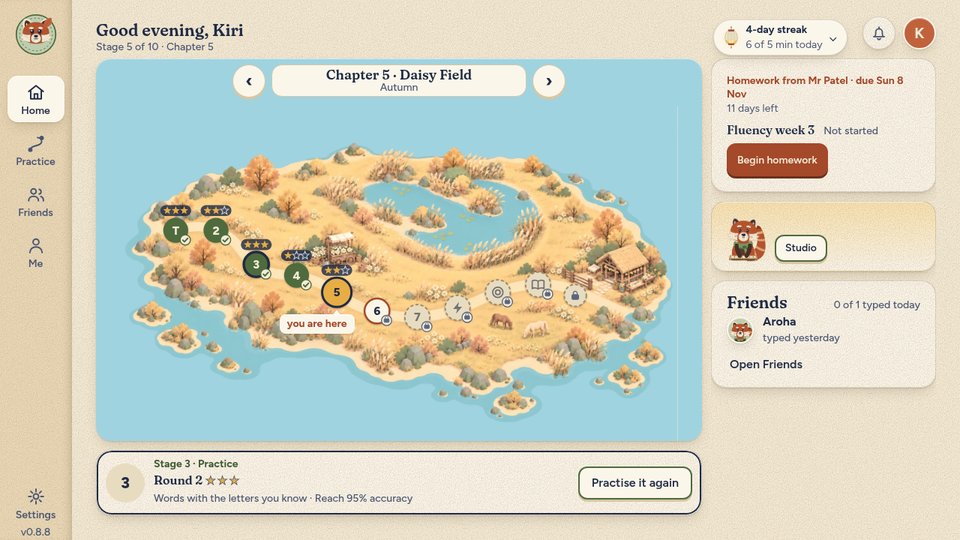
Rewards for care, not for clicks
Every stage shows up to three stars for accuracy: one star for 90% or better, two for 95%, three for 99%. Your best lesson on the stage counts. Practice passages and homework do not. Stars and medals never block the path.
Medals: six for accuracy and form.
A day streak with rest days: meet your daily goal to keep your streak going, and choose rest days that never break it.
Friends along the way: Companions and outfits unlock as you progress through the English chapters. Once earned, they stay with you.
What we store, in plain words
- A display name, your settings, time zone and friends list. At home, a child needs no email or password.
- Typing results, and the key presses with their timings from each lesson, so speed and accuracy can be worked out. You only type text we give you.
- One cookie, to keep you signed in. No ads and no third-party analytics in the app; sign-in uses Clerk. On test versions we may count clicks, without names, accounts or IDs, to improve screens.
Questions parents ask
Are there ads or in-app purchases?
No ads, and nothing to buy inside the app. Every keyboard layout is open from the start.
Does my child need an email address?
Not at home. They pick a name and keep a short resume code to sign back in. There is no password to remember. At a school that uses it, pupils sign in with their school email.
What happens when my child makes a mistake?
A wrong key is marked and the lesson goes on. Backspace goes back to fix it, and a fixed letter turns yellow. The results say how many mistakes there were and how many were fixed.
What if my child is stuck on a stage?
Chapters 1 to 10 need 95% accuracy and no speed, and one finished lesson that reaches the goal clears the stage. After three tries that do not, a "Continue anyway" button appears. Stars show how accurate the best lesson was, and they never block the path.
Are the words suitable for children?
Lessons use a word list filtered for school use, and the words are real from the first lesson.
How long is a lesson?
Short: a few lines of real words. The daily goal starts at 5 minutes, and your child can change it.
Can my child chat with strangers?
No. There is no chat or messaging. Friends are optional: they add each other with a name-and-number handle.
Can I see how they are doing?
Yes. Ask your child for a parent link (Settings, Family report, Parent links). It shows the last 7 days and works for 30 days. If they use it at school, ask the school to invite you to its family page.
Does it work on an iPad or phone?
No. Typing needs real keys, so you need a computer with a physical keyboard.
Which keyboards work?
Standard US-style (ANSI) keyboards, set to QWERTY, Dvorak, Colemak or Workman. UK and European (ISO) extra keys, AZERTY and QWERTZ are not supported yet.
What age is it for?
We haven't set an age. It suits anyone who can read short words and is ready to learn where their fingers go.
Put the kettle on. The path is waiting.
Pick a name, rest your index fingers on the little bumps of F and J, and begin.